How to Use the Pebblebee Finder to Locate Your Lost Keys and Bags

Lost keys at home or left your bag somewhere? Discover how Clip 5 helps locate missing belongings and what to do when location updates stop.
All featured products are selected by our editors and may include affiliate links. If you purchase through these links, we may earn a commission.
Losing your keys when you're already running late can turn an ordinary morning into a frustrating search. A missing bag can be even more stressful when you cannot remember where you left it.
Pebblebee Finder Clip 5 finds everyday items using Bluetooth and smartphone tracking networks. But a key search nearby is not the same as looking for a bag you've left somewhere else. Knowing the difference, and setting up and keeping your location properly updated, can make finding your stuff much easier.
How the Pebblebee Finder Tracks Your Missing Belongings
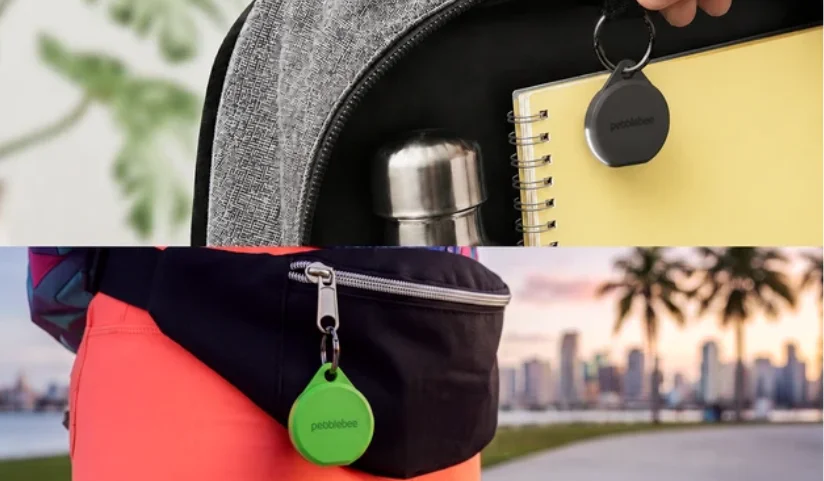
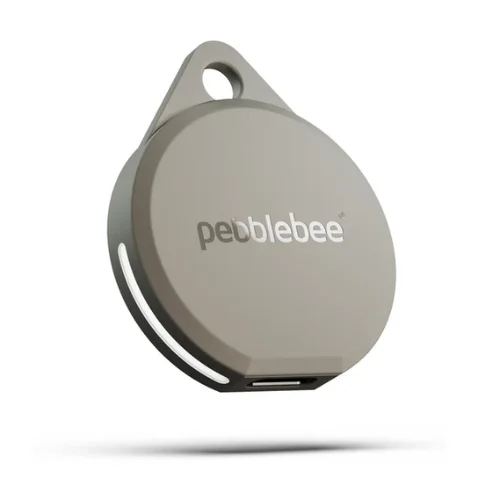
The Pebblebee Clip 5 is a Bluetooth item finder that you can attach to keys, bags and luggage. It’s rechargeable. It connects to Apple Find My or Google’s Find Hub so you can see where they are and send an audible alert when your stuff is nearby.
The Bluetooth range reaches up to 500 feet in open conditions, although walls and interference can limit that distance. It has Built-in LED lights and a loud buzzer that help locate belongings hidden beneath cushions or inside crowded spaces.
Once Clip 5 moves beyond your phone's Bluetooth range, the selected tracking network relies on other compatible devices to detect its signal and securely report an approximate location.
However, those updates depend on nearby participating devices. Clip 5 doesn't contain GPS or provide continuous live tracking, which makes understanding its location reports particularly important.
How to Set Up Clip 5 Correctly Before Using It
Before pairing, fully charge Clip 5, enable Bluetooth, and ensure your phone has internet access. Android users should also enable Location.
Connecting Clip 5 to Apple Find My or Google Find Hub
Following the correct Pebblebee Finder instructions prevents a common setup mistake. Clip 5 must connect to your phone's finding network before being added to the Pebblebee app.
For iPhone
- Open Apple Find My and select Items.
- Tap the plus icon and choose Add Other Item.
- Double press the Clip 5 button until it beeps twice and flashes white.
- Select the detected finder and complete pairing.
For Android
- Open Google Find Hub and sign into your Google account.
- Double press the Clip 5 button until it beeps twice and flashes white.
- Wait for the Fast Pair notification.
- Select Connect and follow the instructions.
Avoid pairing through your phone's ordinary Bluetooth settings. Clip 5 must connect through the appropriate finding network.
Afterward, add Clip 5 to the Pebblebee app for firmware updates, Phone Finder, and recovery features. Open the app, sign in, select Add Device, and press the Clip 5 button five times when prompted.
Each finder connects to only one tracking network at a time, even though the hardware supports both operating systems.
Testing the Finder Before You Need It
Turn on your tracking app. Choose Clip 5. With the device close by, select Play Sound. The check buzzer is working and the LEDs are blinking.
Try again in another room to see how far the alert goes indoors. It also helps you find where your phone might struggle to maintain a Bluetooth connection.
Ensure that Clip 5 appears properly in your application and has sufficient power. A simple test will reveal setup issues before your stuff vanishes.
How to Find Items That Are Outside Bluetooth Range
When keys are nearby, the buzzer can guide you toward them. Finding a bag left somewhere else depends on Apple's or Google's wider finding network.
Open your tracking app and select Clip 5 to view its reported location. If other compatible devices have detected the finder, their reports can help identify where your belongings were last seen.
Location updates are more likely in places with participating devices nearby. A tracker inside a rarely visited building might remain undetected considerably longer than one in a busy shopping centre.
Why the Last Known Location Can Be Misleading
One thing that’s easy to miss is the timestamp that comes with the location marker. A more recent update is a better clue than an update from a few hours ago. In a Reddit thread, someone described how their finder’s location timestamp appeared old until they opened the app. Another suggested checking background permissions and network settings.
Such things do show a practical limitation. A map marker shows the last reported position, which may no longer reflect where your belongings are. Before travelling to retrieve an item, check the reporting time and, if possible, contact the location directly.
How the Recovery QR Code Can Help
Clip 5 includes a recovery QR code that offers another way to reconnect people with missing belongings. After adding the finder to the Pebblebee app, its Pebblebee Link QR code activates automatically. Someone who discovers your bag can scan the code and contact you through a secure recovery page.
Your personal contact information isn't displayed directly. You can also configure a recovery message to help arrange the item's return. The QR code doesn't reveal a live location. Someone must physically find and scan it, making this feature particularly useful when network detection hasn't provided a recent update.
How to Fix Clip 5 When Its Location Stops Updating
An outdated location doesn't always mean something is wrong with the finder. Bluetooth connectivity, device settings, and limited network coverage can all affect reporting.
Check These Settings Before Resetting Your Finder
Try these checks before you attempt more complicated troubleshooting.
- Confirm Bluetooth is on and bring your phone closer to Clip 5 Bluetooth
- Location access: Review location permissions, particularly on Android.
- Internet connection: Check that your phone can access the tracking network.
- Battery: Recharge Clip 5 if its battery level is low.
- Firmware: Check the Pebblebee app for available updates.
Android users should also review Google Find Hub's offline finding preferences. Pebblebee recommends selecting With Network in All Areas to improve opportunities for detection through participating Android devices.
Know When a Factory Reset Is Necessary
In a Reddit discussion about Clip 5 connection problems, people described the trackers showing outdated locations or failing to play sounds despite appearing connected. Some said they saw improvements after disconnecting and reconnecting their devices but others had to go through multiple troubleshooting attempts. There isn't a universal solution to these experiences.
As a general rule, basic connectivity checks should precede a factory reset. Pebblebee recommends deleting Clip 5 from its existing finding network, resetting it, and pairing it again. If you are experiencing problems, instead of resetting a device repeatedly not knowing the cause, please contact Pebblebee support.
FAQs
What Is Pebblebee and Does Clip 5 Require a Subscription?
Pebblebee produces rechargeable item finders and connected safety accessories. You don't need a Pebblebee subscription to track the standard location via Apple Find My or Google Find Hub. But some additional safety features may have separate requirements.
Can Clip 5 Still Work When Your Phone Is Switched Off
Yes, other compatible devices may detect Clip 5 and report its location while your phone is switched off. You can check those reports when you regain access to your tracking account. Updates still depend on network availability.
Can Clip 5 Be Used After Switching From iPhone to Android?
Yes, but switching networks requires removing the finder from its existing account connection and resetting it before pairing with the new platform. Clip 5 cannot actively use both finding networks simultaneously.
The Pebblebee Finder Clip 5 can make locating lost belongings easier when you understand how its tracking features work. From finding misplaced keys to checking the last known location of a missing bag, Pebblebee offers practical tools for everyday use.
Follow TheWeeklyFind for more helpful guides and the latest updates on Gadgets.
Recent Blogs
-
How to Use the Pebblebee Finder to Locate Your Lost Keys and Bags
Lost keys at home or left your bag somewhere? Discover how Clip 5 helps locate missing belongings and what to do when location updates stop.
-
Solar Lights That Make Your Garden Just as Inviting After Dark
Your garden deserves a little attention after sunset, too. Discover lighting ideas that make outdoor spaces feel inviting long after daylight fades.
-

Auguste Mini Dresses You Will Want To Wear On Repeat
Some dresses look good once and then disappear into the wardrobe. These four Auguste styles are easier to imagine wearing again and again.
-

Weekday Clothing Picks For Men Who Need Better Everyday Jeans
Some trousers earn a permanent spot in your weekly rotation. These five Weekday Jeans are selected with easy styling and repeat wear in mind.
-

How To Choose Better Seats On Emirates Without Paying Unnecessary Fees
Understand seat selection charges before paying extra. Find out when better choices become free and which exceptions help families.